library(tidyverse)
library(sf)
library(leaflet)
library(leaflet.providers) # Base Map tile providers
library(leaflet.extras) # leaflet frills and thrills

# Data
library(osmdata) # Import OSM Vector Data into R

# pak::pak("datadotworld/data.world-r")
library(data.world) # For India Airports Data
1 Introduction
This Tutorial works through the ideas at Leaflet.
NoteLeaflet
Leaflet is a JavaScript library for creating dynamic maps that support panning and zooming along with various annotations like markers, polygons, and popups.
In this tutorial we will work only with vector data. In a second part, we will work with raster data in leaflet. (Hah! When??)
2
3 Basic Features of a leaflet Map
Show the Code
Click on the map to zoom in; Shift+Click to zoom out. leaflet by default uses Open Street Map as its base map. We can use other base maps too, as we will see below.
4 Base Map Options
leaflet allows the use of different free map-tile services, using the addProviderTiles() function. The list of available providers is available at Leaflet Providers. Here is a table of some providers that can quickly be used without any elaborate setting up of API tokens:
| Provider name | Style / use |
|---|---|
| addTiles() | Standard OpenStreetMap |
| “OpenStreetMap” | Standard OpenStreetMap |
| “OpenStreetMap.HOT” | Humanitarian OSM style |
| “Esri.WorldStreetMap” | Familiar street map |
| “Esri.WorldTopoMap” | Topographic reference map |
| “Esri.WorldImagery” | Satellite imagery |
| “Esri.NatGeoWorldMap” | National Geographic-style map |
| “OpenTopoMap” | Detailed topographic map |
| “CyclOSM” | Cycling-oriented OSM style |
Show the Code
library(leafsync) # For latticeView of all maps here
# 1. OpenStreetMap --------------------------------------------------------

map_osm <- leaflet() |>
  setView(lng = 77.5946, lat = 12.9716, zoom = 11) |>
  addTiles() |>
  addCircleMarkers(
    lng = 77.5946,
    lat = 12.9716,
    radius = 4,
    color = "black",
    fillOpacity = 1,
    label = "Bangalore centre"
  )


# 2. Esri World Street Map ------------------------------------------------

map_esri_street <- leaflet() |>
  setView(lng = 77.5946, lat = 12.9716, zoom = 11) |>
  addProviderTiles("Esri.WorldStreetMap") |>
  addCircleMarkers(
    lng = 77.5946,
    lat = 12.9716,
    radius = 4,
    color = "black",
    fillOpacity = 1,
    label = "Bangalore centre"
  )


# 3. Esri World Topographic Map -------------------------------------------

map_esri_topo <- leaflet() |>
  setView(lng = 77.5946, lat = 12.9716, zoom = 11) |>
  addProviderTiles("Esri.WorldTopoMap") |>
  addCircleMarkers(
    lng = 77.5946,
    lat = 12.9716,
    radius = 4,
    color = "black",
    fillOpacity = 1,
    label = "Bangalore centre"
  )


# 4. Esri World Imagery ---------------------------------------------------

map_esri_imagery <- leaflet() |>
  setView(lng = 77.5946, lat = 12.9716, zoom = 11) |>
  addProviderTiles("Esri.WorldImagery") |>
  addCircleMarkers(
    lng = 77.5946,
    lat = 12.9716,
    radius = 4,
    color = "black",
    fillOpacity = 1,
    label = "Bangalore centre"
  )


# 5. Esri Gray Canvas -----------------------------------------------------

map_esri_gray <- leaflet() |>
  setView(lng = 77.5946, lat = 12.9716, zoom = 11) |>
  addProviderTiles("Esri.WorldGrayCanvas") |>
  addCircleMarkers(
    lng = 77.5946,
    lat = 12.9716,
    radius = 4,
    color = "black",
    fillOpacity = 1,
    label = "Bangalore centre"
  )


# 6. OpenTopoMap ----------------------------------------------------------

map_opentopo <- leaflet() |>
  setView(lng = 77.5946, lat = 12.9716, zoom = 11) |>
  addProviderTiles("OpenTopoMap") |>
  addCircleMarkers(
    lng = 77.5946,
    lat = 12.9716,
    radius = 4,
    color = "black",
    fillOpacity = 1,
    label = "Bangalore centre"
  )


# Display as small facets --------------------------------------------------

latticeView(
  map_osm,
  map_esri_street,
  map_esri_topo,
  map_esri_imagery,
  map_esri_gray,
  map_opentopo,
  ncol = 3,
  sync = "all",
  sync.cursor = TRUE
)
5 Add Shapes to a Map
leaflet offers several commands to add points, popups, markers, icons, lines, polylines, and polygons to a map. Let us examine a few of these.
NoteAdding Shapes
What are the different commands in leaflet that enable us to add shapes to a map?
-
addTiles(): Add Basemap -
addMarkers(): -
addPopups(): -
addLabelOnlyMarkers(): -
addCircles()/addCircleMarkers(): -
addRectangles(): -
addPolygons(): -
addPolylines(): -
addAwesomeMarkers():
and a good few more!!
5.1 Add Markers with popups
Show the Code
m %>% addMarkers(
  lng = 77.580643, lat = 12.972442,
  popup = "The birthplace of Rvind"
)This uses the default pin shape as the Marker. Click on the Marker for the popup to appear.
5.2 Adding Popups to a Map
Popups are small boxes containing arbitrary HTML, that point to a specific point on the map. Use the addPopups() function to add standalone popup to the map.
Show the Code
m %>%
  addPopups(
    lng = 77.580643,
    lat = 12.972442,
    popup = paste(
      "The birthplace of Rvind",
      "<br>",
      "Website: <a href = https://arvindvenkatadri.com>Arvind V's Website </a>",
      "<br>"
    ),
    ## Ensuring we cannot close the popup,
    ## else we will not be able to find where it is,
    ## since there is no Marker

    options = popupOptions(closeOnClick = FALSE)
)Popups are usually added to icons, Markers and other shapes can show up when these are clicked.
5.3 Adding Labels to a Map
Labels are messages attached to all shapes, using the argument label wherever it is available.
Labels are static, and Popups are usually visible on mouse click.
Hence a Marker can have both a label and a popup. For example, the function addPopup() offers only a popup argument, whereas the function addMarkers() offers both a popup and a label argument.
It is also possible to create labels standalone using addLabelOnlyMarkers() where we can show only text and no Markers.
Show the Code
m %>%
  addMarkers(
    lng = 77.580643,
    lat = 12.972442,

    # Here is the Label defn.
    label = "Label Text: The birthplace of Rvind",
    labelOptions = labelOptions(
      noHide = TRUE, # Label always visible
      textOnly = FALSE, # Label bgnd visible
      textsize = 20
    ),

    # And here is the popup defn.
    popup = paste(
      "PopUp Text: <a href = https://arvindvenkatadri.com>Arvind V's Website </a>",
      "<br>"
    )
)5.4 Adding Circles and CircleMarkers on a Map
We can add shapes on to a map to depict areas or locations of interest.
Note
addCircles and addCircleMarkers
The radius argument works differently in addCircles() and addCircleMarkers().
Show the Code
# Some Cities in the US and their location
md_cities <- tibble(
  name = c("Baltimore", "Frederick", "Rockville", "Gaithersburg", "Bowie", "Hagerstown", "Annapolis", "College Park", "Salisbury", "Laurel"),
  pop = c(619493, 66169, 62334, 61045, 55232, 39890, 38880, 30587, 30484, 25346),
  lat = c(39.2920592, 39.4143921, 39.0840, 39.1434, 39.0068, 39.6418, 38.9784, 38.9897, 38.3607, 39.0993),
  lng = c(-76.6077852, -77.4204875, -77.1528, -77.2014, -76.7791, -77.7200, -76.4922, -76.9378, -75.5994, -76.8483)
)


md_cities %>%
  leaflet() %>%
  addTiles() %>%
  # CircleMarkers, in blue
  # radius scales the Marker. Units are in Pixels!!
  # Here, radius is made proportional to `pop` number
  addCircleMarkers(
    radius = ~ pop / 1000, # Pixels!!
    color = "blue",
    stroke = FALSE, # no border for the Markers
    opacity = 0.8
  ) %>%
  # Circles, in red
  addCircles(
    radius = 5000, # Meters !!!
    stroke = TRUE,
    color = "yellow", # Stroke Colour
    weight = 3, # Stroke Weight
    fill = TRUE,
    fillColor = "red",
)The shapes need not be of fixed size or colour; their attributes can be made to correspond to other attribute variables in the geospatial data, as we did with radius in the addCircleMarkers() function above.
5.5 Adding Rectangles to a Map
5.6 Add Polygons to a Map
Show the Code
5.7 Add PolyLines to a Map
This can be useful say for manually marking a route on a map, with waypoints.
Show the Code
leaflet() %>%
  addTiles() %>%
  setView(lng = 77.580643, lat = 12.972442, zoom = 6) %>%
  # arbitrary vector data for lat and lng
  # If start and end points are the same, it looks like Polygon
  # Without the fill
  # Two Vectors
  addPolylines(
    lng = c(73.5, 75.9, 76.1, 77.23, 79.8),
    lat = c(10.12, 11.04, 11.87, 12.04, 10.7)
  ) %>%
  # Add Waypoint Icons
  # Same Two Vectors
  addMarkers(
    lng = c(73.5, 75.9, 76.1, 77.23, 79.8),
    lat = c(10.12, 11.04, 11.87, 12.04, 10.7)
  )
As seen, we have created Markers, Labels, Polygons, and PolyLines using fixed.i.e. literal text and numbers. In the following we will also see how external geospatial data columns can be used instead of these literals.
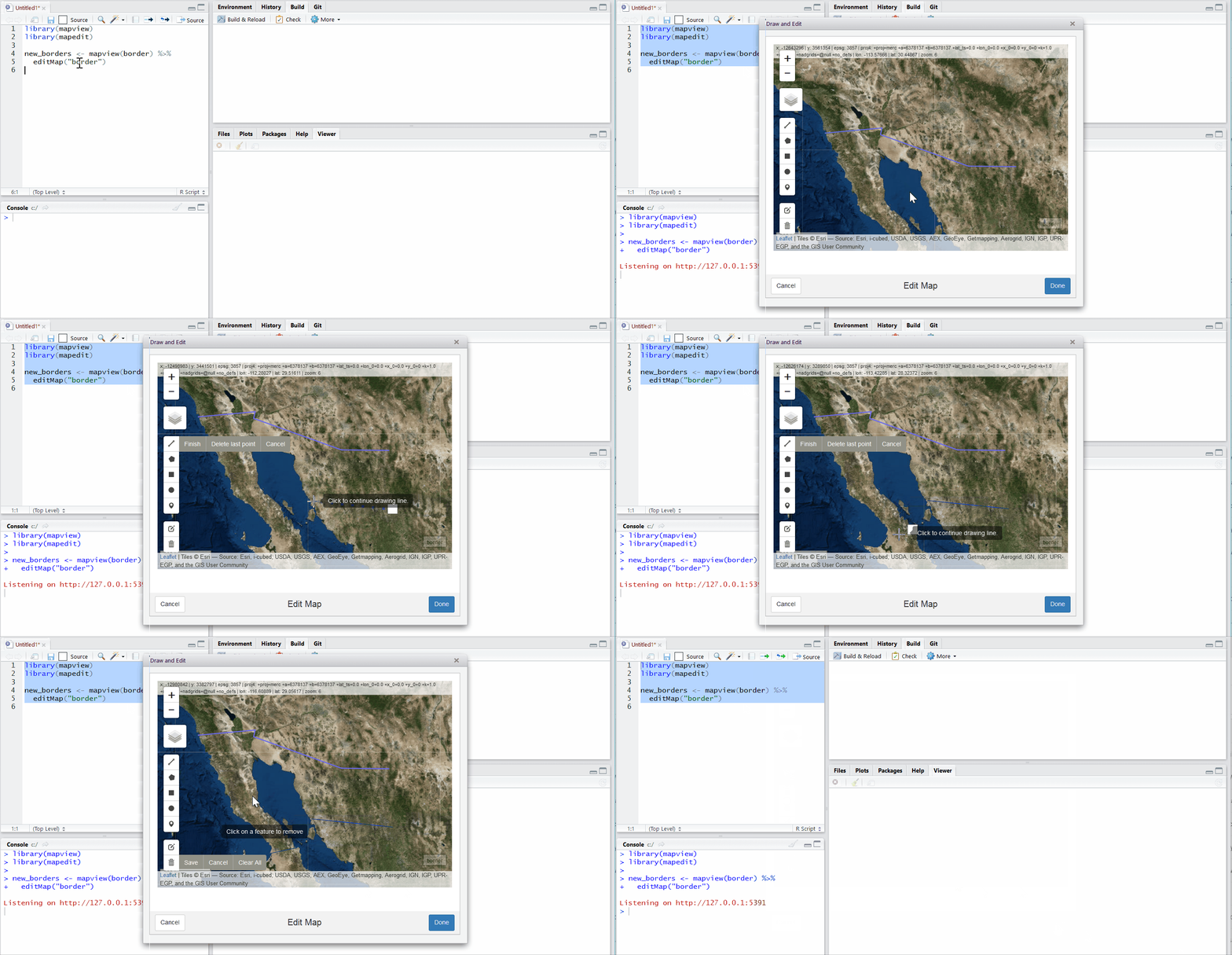
5.8 Using mapedit
One difficulty above would have been the creating of the literal sets of vectors for the shapes of interest. The mapedit package allows us to create these data vectors byclicking on a map and saving it directly as data obejects to be passed to leaflet.
ImportantThe
mapedit package
https://r-spatial.org//r/2017/01/30/mapedit_intro.html can also be used to interactively add shapes onto a map and save as an geo-spatial object.
6 Using leaflet with External Geospatial Data
So far, we plotted some quick shapes and popups on to our maps. On to something more complex.
We want to plot an external, and perhaps larget set of user-defined locations on a leaflet map. leaflet takes in geographical data in many ways and we will explore most of them. We know of course, that external data can be of different geometries: POINT/MULTIPOINT; LINE/MULTILINE; POLYGON/MULTIPOLYGON and so on.
6.1 POINT Data Sources for leaflet
Point data for markers can come from a variety of sources:
-
Vectors: Simply provide numeric
vectorsaslngandlatarguments, which we have covered already in the preceding sections. -
Matrices:
Two-column numeric matrices(first column islongitude, second islatitude)
-
Data Frames:
Data frame/tibblewithlatitudeandlongitudecolumns. You can explicitly tell the marker function which columns contain the coordinate data (e.g.addMarkers(lng = ~Longitude, lat = ~Latitude)), or let the function look for columns namedlat/latitudeandlon/lng/long/longitude(case insensitive).
-
Package
sf: POINT,sfc_POINT, andsfobjects (from thesfpackage); only X and Y dimensions will be considered
Packagesp: SpatialPoints orSpatialPointsDataFrameobjects (from thesppackage)
WarningNot using
sp
We will not consider the use of sp related data structures for plotting POINTs in leaflet since sp is being phased out in favour of the more modern package sf.
Points using simple Data Frames
Let us read in the data set from data.world that gives us POINT locations of all airports in India in a data frame / tibble. The dataset is available at https://query.data.world/s/ahtyvnm2ybylf65syp4rsb5tulxe6a and, for poor peasants especially, also by clicking the download button here below. Save it in a convenient data folder in your project and read it in.
NoteUsing
data.world
You will need the package data.world and also need to register your credentials for that page with RStudio. The (simple!) instructions are available here at data.world.
Show the Code
india_airports <-
  read_csv("https://query.data.world/s/ahtyvnm2ybylf65syp4rsb5tulxe6a") %>%
  slice(-1) %>% # Drop the first row which contains labels
  dplyr::mutate(
    id = as.integer(id),
    latitude_deg = as.numeric(latitude_deg),
    longitude_deg = as.numeric(longitude_deg),
    elevation_ft = as.integer(elevation_ft)
  ) %>%
  rename("lon" = longitude_deg, "lat" = latitude_deg) %>%
  # Remove four locations which seem to be in the African Atlantic
  filter(!id %in% c(330834, 330867, 325010, 331083))

india_airports %>% head()
Here is the data:
Let us plot this in leaflet, using an ESRI National Geographic style map instead of the default OSM Base Map. We will also place small circle markers for each airport.
Show the Code
leaflet(data = india_airports) %>%
  setView(lat = 18, lng = 77, zoom = 4) %>%
  # Add NatGeo style base map
  addProviderTiles("Esri.WorldTopoMap") %>%
  # Add Markers for each airport
  addCircleMarkers(
    lng = ~lon, lat = ~lat,
    # Optional, variables stated for clarity
    # leaflet can automatically detect lon-lat columns
    # if they are appropriately named in the data
    # longitude/lon/lng
    # latitude/lat
    radius = 2, # Pixels
    color = "red",
    opacity = 1
  )
We can also change the icon for each airport. Here is the IATA icon: download and save it and make sure this code below has the proper path to this .png file!

Show the Code
# Define popup message for each airport
# Based on data in india_airports
popup <- paste(
  "<strong>",
  india_airports$name,
  "</strong><br>",
  india_airports$iata_code,
  "<br>",
  india_airports$municipality,
  "<br>",
  "Elevation(feet)",
  india_airports$elevation_ft,
  "<br>",
  india_airports$wikipedia_link,
  "<br>"
)

iata_icon <- makeIcon(
  "../../images/iata-logo-transp.png", # Downloaded from www.iata.org
  iconWidth = 24,
  iconHeight = 24,
  iconAnchorX = 0,
  iconAnchorY = 0
)

# Create the Leaflet map
leaflet(data = india_airports) %>%
  setView(lat = 18, lng = 77, zoom = 4) %>%
  addProviderTiles("Esri.NatGeoWorldMap") %>%
  addMarkers(
    icon = iata_icon,
    popup = popup
)It is possible to create a list of icons, so that different Markers can have different icons. There are some ideas about this at Using Leaflet Markers@JLA-Data.net
Points using sf objects
We will use data from an sf data object. This differs from the earlier situation where we had a simple data frame with lon and lat columns. In sf, as we know, the lon and lat info is embedded in the geometry column of the sf data frame.
The tmap package has a data set of all World metro cities, titled metro. We will plot these on the map and also scale the markers in proportion to one of the feature attributes, pop2030. The popup will be the name of the metro city. We will also use the CartoDB.Positron base map in our map.
Note that the metro data set has a POINT geometry, as needed!
Show the Code
data(metro, package = "tmap")
metro
Show the Code
leaflet(data = metro) %>%
  setView(lat = 18, lng = 77, zoom = 4) %>%
  # Add CartoDB.Positron
  addProviderTiles(providers$Esri.NatGeoWorldMap) %>% # Another Way

  # Add Markers for each airport
  addCircleMarkers(
    radius = ~ sqrt(pop2030) / 350,
    color = "red",
    popup = paste(
      "Name: ", metro$name, "<br>",
      "Population 2030: ", metro$pop2030
    )
  )
We can also try downloading an sf data frame with POINT geometry from say OSM data https://www.openstreetmap.org/#map=16/12.9766/77.5888. Let us get hold of restaurants data in Malleswaram, Bangalore from OSM data:
```{r}
#| label: tbl-malleswaram-restaurant-data
#| tbl-cap: Malleswaram Restaurants
#|
# This code is for reference
# Run these commands ONCE in your Console
# Or run this chunk manually one time
# Re-run ONLY if you change your bounding box


bbox <- osmdata::getbb("Malleswaram, Bengaluru")
bbox %>% as_tibble() %>% cbind("Coords" = c("Lon", "Lat"))

locations <-
  osmdata::opq(bbox = bbox) %>%
  osmdata::add_osm_feature(key = "amenity", value = "restaurant") %>%
  osmdata_sf() %>%
  purrr::pluck("osm_points") %>%
  dplyr::select(name, cuisine, geometry) %>%
  dplyr::filter(cuisine == "indian")

locations %>% head()

malleswaram_restaurants <- st_write(dsn = "./gpkg-data/malleswaram_restaurants.gpkg", locations, append = FALSE, quiet = FALSE, driver = "GPKG")

```
Now let us plot these, using fontawesome]() icons for the markers. The awesomeIcons() function allows us to specify the icon, its colour, and other attributes.
NoteIcons on
leaflet maps
leaflet allows the use of ionicons, glyphicons, and FontAwesomeIcons as markers on maps.
Show the Code
malleswaram_restaurants <- sf::st_read("./gpkg-data/malleswaram_restaurants.gpkg")Reading layer `malleswaram_restaurants' from data source
`/Users/arvindv/RWork/MyWebsites/madhatter/content/courses/Analytics/10-Descriptive/Modules/90-Space/Modules/20-Leaflet/gpkg-data/malleswaram_restaurants.gpkg'
using driver `GPKG'
Simple feature collection with 23 features and 2 fields
Geometry type: POINT
Dimension: XY
Bounding box: xmin: 77.55053 ymin: 12.98536 xmax: 77.58571 ymax: 13.01154
Geodetic CRS: WGS 84Show the Code
leaflet(
  data = malleswaram_restaurants,
  options = leafletOptions(minZoom = 12)
) %>%
  addProviderTiles(providers$OpenTopoMap) %>%
  # Regular `leaflet` code
  addAwesomeMarkers(
    icon = awesomeIcons(
      icon = "fa-coffee",
      library = "fa",
      markerColor = "blue",
      iconColor = "black",
      iconRotate = TRUE
    ),
    popup = paste(
      "Name: ",
      malleswaram_restaurants$name, "<br>",
      "Food: ", malleswaram_restaurants$cuisine
    )
  )
NoteFontawesome Workaround**
For more later versions of Fontawesome, here below is a workaround from https://github.com/rstudio/leaflet/issues/691. Despite this some fontawesome icons simply do not seem to show up. Aiyooo….;-()
( Update Dec 2023: Seems OK now…)
Note
leaflet detects sf POINT geometry
Note that leaflet automatically detects the lon/lat columns from within the POINT geometry column of the sf data frame.
6.2 LINESTRING, POLYLINESTRING, and POLYGON Data Sources for leaflet
We have seen how to get POINT data into leaflet.
LINE and POLYGON data can also come from a variety of sources:
-
sfpackage:MULTIPOLYGON,POLYGON,MULTILINESTRING, andLINESTRINGobjects (from thesfpackage) sppackage:SpatialPolygons,SpatialPolygonsDataFrame,Polygons, andPolygon objects(from the sp package)**sppackage:SpatialLines,SpatialLinesDataFrame,Lines, andLine objects(from the sp package)-
mapspackage:mapobjects (from the maps package’smap()function); usemap(fill = TRUE)for polygons,FALSEfor polylines -
Matrices:Two-column numeric
matrix; the first column is longitude and the second is latitude. Polygons are separated by rows of (NA, NA). It is not possible to represent multi-polygons nor polygons with holes using this method; Sounds very clumsy and better not attempt. Use sfheaders instead (see below) to convert tosfformat. -
Hand-crafted data using sfheaders: We can use the
sfheaderspackage to hand-create LINE/MULTILINE POLYGON/MULTIPOLYGON geometries and pack them into asfdata frame. - Hand-drawn data using the mapedit package:
ImportantThe
mapedit package
https://r-spatial.org//r/2017/01/30/mapedit_intro.html can also be used to interactively add shapes onto a map and save as an geo-spatial object.
We will concentrate on using sf data into leaflet. We may explore maps, and sfheaders objects at a later date.
Polygons/MultiPolygons and LineString/MultiLineString using sf data frames
Let us download College buildings, parks, and the cycling lanes in Amsterdam, Netherlands, and plot these in leaflet.
```{r}
# This code is for reference
# Run these commands ONCE in your Console
# Or run this chunk manually one time
# Re-run ONLY if you change your bounding box

# Setting bbox manually is better
amsterdam_coords <- matrix(c(4.85,4.95,52.325,52.375),
                           byrow = TRUE,
                           nrow = 2, ncol = 2,
                           dimnames = list(c('x','y'),c('min','max')))
amsterdam_coords

amst_colleges <- amsterdam_coords %>%
  osmdata::opq() %>%
  osmdata::add_osm_feature(key = "amenity",
                           value = "college") %>%
  osmdata_sf() %>%
  purrr::pluck("osm_polygons")

amst_parks <- amsterdam_coords %>%
  osmdata::opq() %>%
  osmdata::add_osm_feature(key = "landuse", value = "grass") %>%
  osmdata_sf() %>%
  purrr::pluck("osm_polygons")

amst_roads <- amsterdam_coords %>%
  osmdata::opq() %>%
  osmdata::add_osm_feature(key = "highway",
                           value = "primary") %>%
  osmdata_sf() %>%
  purrr::pluck("osm_lines")

amst_cyclelanes <- amsterdam_coords %>%
  osmdata::opq() %>%
  osmdata::add_osm_feature(key = "cycleway")  %>%
  osmdata_sf() %>%
  purrr::pluck("osm_lines")

```
Save this data so that we can plot with it without repeatedly downloading it and hitting the OSM data server:
```{r}
# This code is for reference
# Run these commands ONCE in your Console
# Or manually run this chunk once

sf::st_write(amst_colleges, dsn = "./gpkg-data/amst_colleges.gpkg",
         append = FALSE, quiet = FALSE, driver = "GPKG")

sf::st_write(amst_parks,
         dsn = "./gpkg-data/amst_parks.gpkg",
         append = FALSE,
         quiet = FALSE, driver = "GPKG")

sf::st_write(amst_roads, dsn = "./gpkg-data/amst_roads.gpkg",
         append = FALSE,quiet = FALSE)

sf::st_write(amst_cyclelanes, dsn = "./gpkg-data/amst_cycle_lanes.gpkg",
         append = FALSE,quiet = FALSE)

```
Let us now read back the saved Data:
Show the Code
amst_colleges <- sf::st_read("./gpkg-data/amst_colleges.gpkg")Reading layer `amst_colleges' from data source
`/Users/arvindv/RWork/MyWebsites/madhatter/content/courses/Analytics/10-Descriptive/Modules/90-Space/Modules/20-Leaflet/gpkg-data/amst_colleges.gpkg'
using driver `GPKG'
Simple feature collection with 9 features and 36 fields
Geometry type: POLYGON
Dimension: XY
Bounding box: xmin: 4.859212 ymin: 52.32642 xmax: 4.929268 ymax: 52.36779
Geodetic CRS: WGS 84Show the Code
amst_parks <- sf::st_read("./gpkg-data/amst_parks.gpkg")Reading layer `amst_parks' from data source
`/Users/arvindv/RWork/MyWebsites/madhatter/content/courses/Analytics/10-Descriptive/Modules/90-Space/Modules/20-Leaflet/gpkg-data/amst_parks.gpkg'
using driver `GPKG'
Simple feature collection with 3811 features and 49 fields
Geometry type: POLYGON
Dimension: XY
Bounding box: xmin: 4.843108 ymin: 52.32139 xmax: 4.956302 ymax: 52.37642
Geodetic CRS: WGS 84Show the Code
amst_roads <- sf::st_read("./gpkg-data/amst_roads.gpkg")Reading layer `amst_roads' from data source
`/Users/arvindv/RWork/MyWebsites/madhatter/content/courses/Analytics/10-Descriptive/Modules/90-Space/Modules/20-Leaflet/gpkg-data/amst_roads.gpkg'
using driver `GPKG'
Simple feature collection with 313 features and 84 fields
Geometry type: LINESTRING
Dimension: XY
Bounding box: xmin: 4.873996 ymin: 52.32453 xmax: 4.934258 ymax: 52.37787
Geodetic CRS: WGS 84Show the Code
amst_cycle_lanes <- sf::st_read("./gpkg-data/amst_cycle_lanes.gpkg")Reading layer `amst_cycle_lanes' from data source
`/Users/arvindv/RWork/MyWebsites/madhatter/content/courses/Analytics/10-Descriptive/Modules/90-Space/Modules/20-Leaflet/gpkg-data/amst_cycle_lanes.gpkg'
using driver `GPKG'
Simple feature collection with 379 features and 121 fields
Geometry type: LINESTRING
Dimension: XY
Bounding box: xmin: 4.849884 ymin: 52.32484 xmax: 4.950636 ymax: 52.37398
Geodetic CRS: WGS 84We have 9 colleges, 3811 parks, 313 roads, and 379 cycle lanes in our data.
Show the Code
leaflet() %>%
  addTiles() %>%
  addPolygons(
    data = amst_colleges, color = "yellow",
    popup = ~ amst_colleges$name
  ) %>%
  addPolygons(data = amst_parks, color = "seagreen", popup = amst_parks$name) %>%
  addPolylines(data = amst_roads, color = "red") %>%
addPolylines(data = amst_cycle_lanes, color = "purple")Note how leaflet automatically uses the sf object’s geometry column to draw the lines/multi-lines and polygons.
7 Using Raster Data in leaflet[Work in Progress!]
So far all the geospatial data we have plotted in leaflet has been vector data.
We will now explore how to plot raster data using leaflet. Raster data are used to depict continuous variables across space, such as vegetation, salinity, forest cover etc. Satellite imagery is frequently available as raster data.
7.1 Importing Raster Data [Work in Progress!]
Raster data can be imported into R in many ways:
- using the maptiles package
- using the terra package
- using the OpenStreetMap package
8 Bells and Whistles in leaflet: layers, groups, legends, and graticules
8.1 Adding Legends
Show the Code
## Generate some random lat lon data around Bangalore
df <- tibble(
  lat = runif(20, min = 11.97, max = 13.07),
  lng = runif(20, min = 77.48, max = 77.68),
  col = sample(c("red", "blue", "green"), 20,
    replace = TRUE
  ),
  stringsAsFactors = FALSE
)

df %>%
  leaflet() %>%
  addTiles() %>%
  addCircleMarkers(color = df$col) %>%
  ### New Code from here
  addLegend(
    values = df$col, labels = LETTERS[1:3],
    colors = c("blue", "red", "green")
  ) %>%
  addGraticule() %>%
  addScaleBar()
8.2 Using Web Map Services (WMS) [Work in Progress!]
To be included.
9
- The
leafletpackage: https://rstudio.github.io/leaflet/ - Using Leaflet Markers @JLA-Data.net
Cheng, Joe, Barret Schloerke, Bhaskar Karambelkar, Yihui Xie, and Garrick Aden-Buie. 2025. leaflet: Create Interactive Web Maps with the JavaScript “Leaflet” Library. https://doi.org/10.32614/CRAN.package.leaflet.
Mark Padgham, Bob Rudis, Robin Lovelace, and Maëlle Salmon. 2017. “Osmdata.” Journal of Open Source Software 2 (14): 305. https://doi.org/10.21105/joss.00305.
Massicotte, Philippe, and Andy South. 2026. rnaturalearth: World Map Data from Natural Earth. https://doi.org/10.32614/CRAN.package.rnaturalearth.
Pebesma, Edzer. 2018. “Simple Features for R: Standardized Support for Spatial Vector Data.” The R Journal 10 (1): 439–46. https://doi.org/10.32614/RJ-2018-009.
Pebesma, Edzer, and Roger Bivand. 2023. Spatial Data Science: With applications in R. Chapman and Hall/CRC. https://doi.org/10.1201/9780429459016.
Tennekes, Martijn. 2018. “tmap: Thematic Maps in R.” Journal of Statistical Software 84 (6): 1–39. https://doi.org/10.18637/jss.v084.i06.